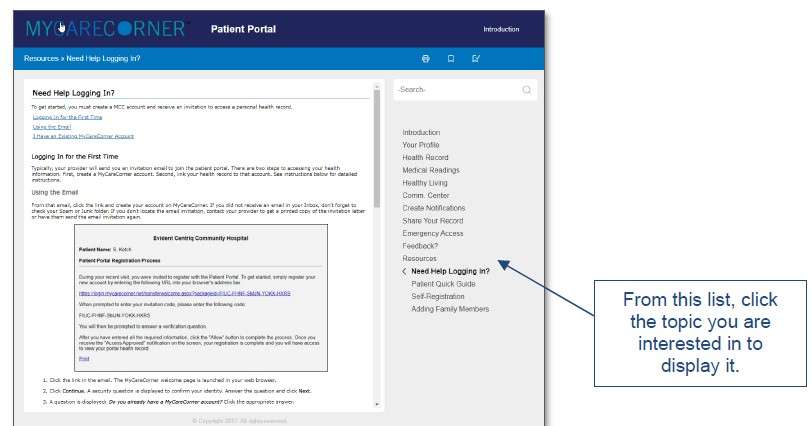
The MyCareCorner (MCC) patient portal provides patients with access to their electronic health record. You, as the patient, can register for the MyCareCorner patient portal in two ways. We will provide you with an email (if you provided an email address) or a printed copy of instructions for accessing the MyCareCorner website.
• Email Invitation: Contact the Muleshoe Area Medical Center (hospital) or the Medical Clinic of Muleshoe to request an email registration invitation for MyCareCorner.
• Printed Invitation: Contact the Muleshoe Area Medical Center (hospital) or the Medical Clinic of Muleshoe to request a printed registration invitation for MyCareCorner.
The instructions for completing the registration steps are included in this document.
Using the Email Invitation
The email is generated by the Muleshoe Area Medical Center (hospital) or the Medical Clinic of Muleshoe and contains embedded information specific to the patient being invited to the portal. If you haven’t received an email, contact your provider to generate one for you.
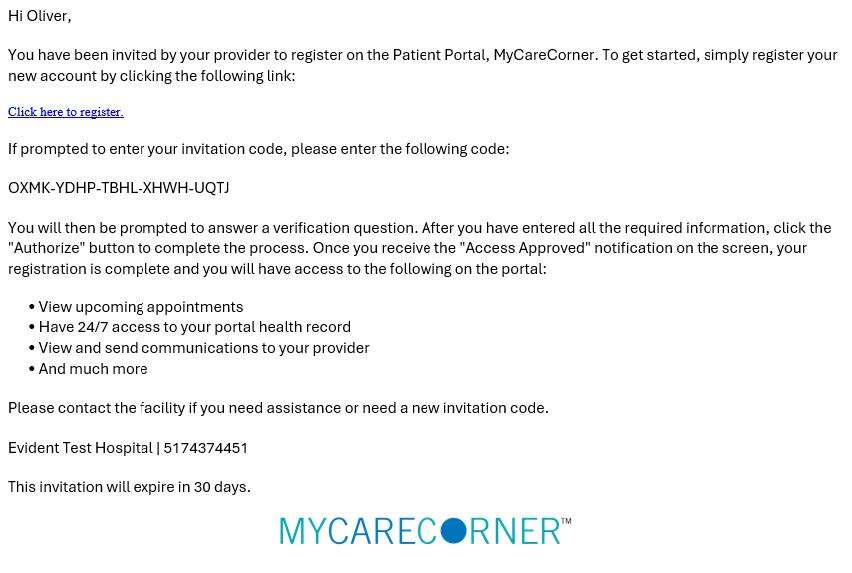
1. Click the link in the email.
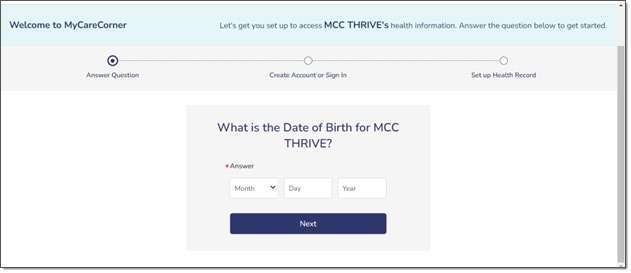
2. A security question is displayed to confirm your identity. Answer the question and click Next.
3. You are then prompted to sign in to your account or you can click Create one now.
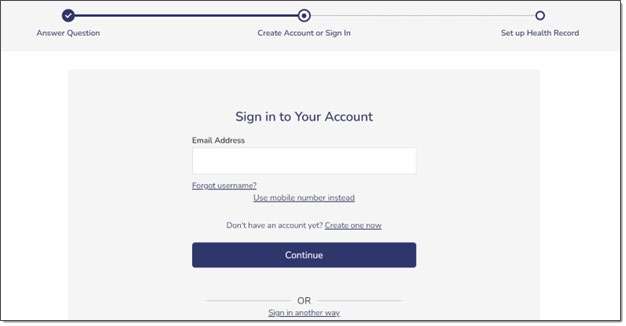
If you click Create one now, the Create Your Account page is displayed. Go to step 4. However, if you already have a MyCareCorner account that you set up previously (invitation from another provider), enter your Email and click Continue. Then, enter your password and click Sign In to access your portal home page (Step 10).
4. In the fields on the Create Your Account page, you may choose to sign in with an existing Apple or Google social account login or enter *your first name, *your last name, an *email address (enter twice to confirm), mobile number (if available – used for text messages regarding your account), and password (enter twice to confirm).
*NOTE: Using the social login does not share your personal information with that application.
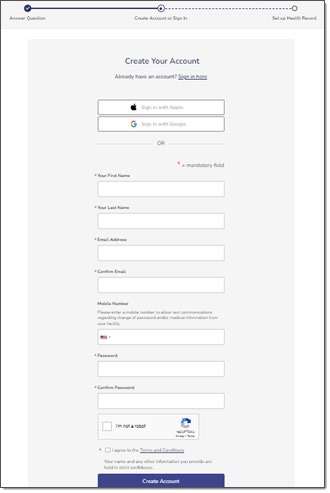
5. Check the I’m not a robot box.
6. Check the I agree to the Terms and Conditions box.
7. Click Create Account.
8. A Success! message is displayed for the patient identified in the invitation.
9. Select Start using MyCareCorner to access your health record.

10. The MyCareCorner patient portal home page is displayed.

Using the Printed Invitation
The printed invitation has the detailed link displayed. This link contains embedded information specific to the patient being invited to the portal.
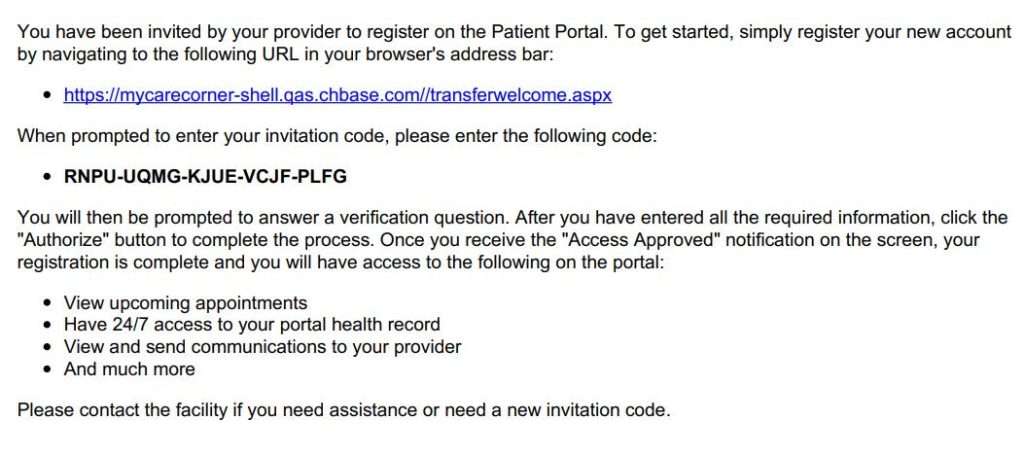
1. Open your web browser, type the URL from the printed invitation into the address bar, and press <Enter>.
2. The remaining steps are the same as in the Using the Email Invitation section. See steps 2-9 of that section to complete the process.
Need More Help?
The MyCareCorner patient portal has application help that can provide you additional guidance on how to perform tasks and access your health record. You can access the application help from two locations:
• From the Login screen, click Need Help?
• From the patient portal, click the Get Help button located in the upper right corner of the screen.