

Welcome to MyCareCorner, your personal portal to your health record. We created this simple, yet comprehensive guide to help you navigate through your new portal.
Getting Started
The Muleshoe Area Medical Center (hospital) or the Medical Clinic of Muleshoe will provide you with an email (if you provided an email address) or a printed invitation for accessing the MyCareCorner website. See Registering in MyCareCorner for step-by-step instructions on this process.
Home Screen
Once you get registered, the MyCareCorner portal provides access to your personal health record and those of your family members (see Adding Family Members). The home screen (or dashboard) contains tiles you can click to view areas of your record. The home screen can be customized by hiding or rearranging the tiles. To customize the home screen, click Edit Display. Move a tile by grabbing the tile by the blue crosshair icon and dragging it to the new location. Uncheck tiles to hide them from your display.
Accessing Areas of Your Health Record
MyCareCorner provides access to your personal health record. You can access areas of your record by clicking the tile on the home screen (or dashboard) or by using the menu options on the left to navigate to areas of your record: Health Record, Medical Readings, Healthy Living, and Communication Center. Select the name of the group to expand it.
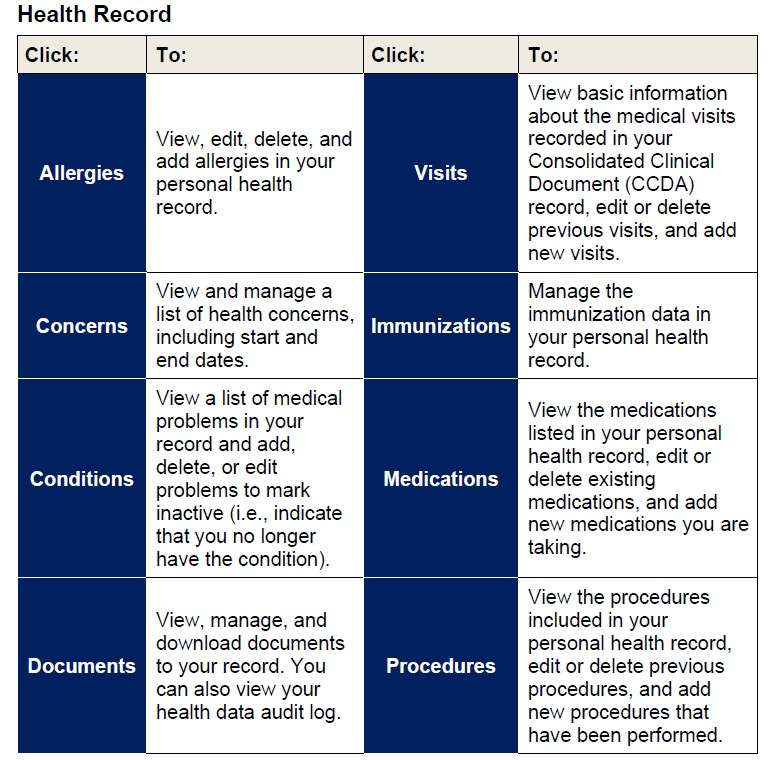
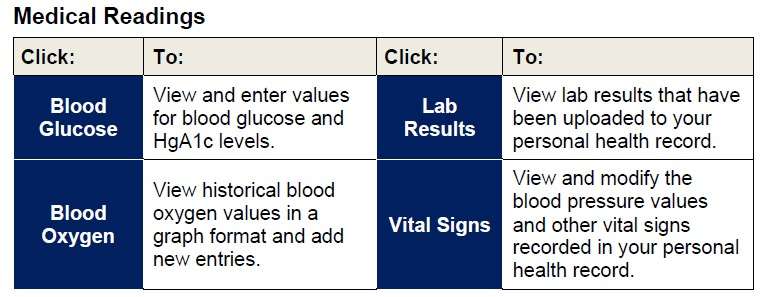
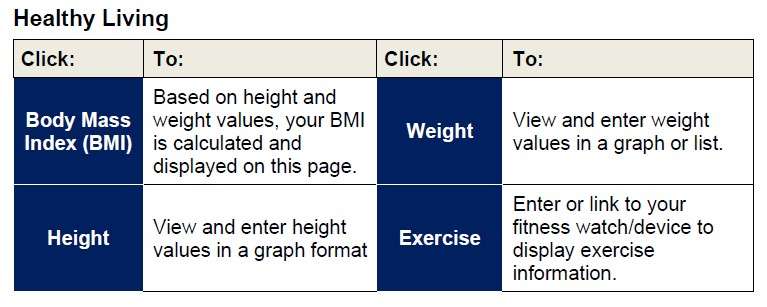
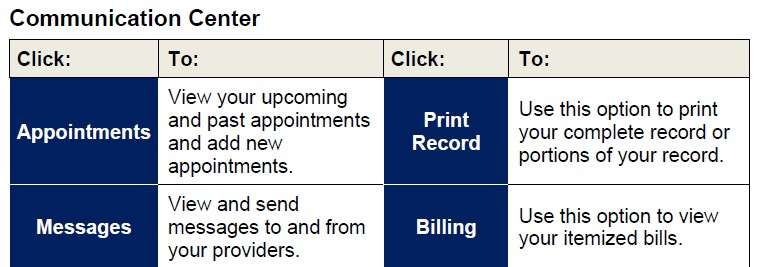
Viewing and Managing Your Health Information
Information in your health record can either come from the hospital information system or you can add it manually. If information comes from the hospital/clinic system, you will NOT be able to edit it. However, if you enter the information manually, you can edit or delete it. If you add information manually, it is important to note that your providers and their staff are NOT able to view your personal portal record – if you have information that your provider should know, please call the provider’s office to notify them.
From each page, use these methods to modify the information you have manually added to your personal health record:
• Click a row within the list (e.g., a specific appointment within the list of appointments) to view more details about that entry. The details appear in a pop-up window on the right side of the screen.
• From the pop-up window, click Delete to delete the entry or Edit to edit it. To close the window, click the “X” in the upper-right corner of the window.
• To add a new entry (e.g., a new allergy from the Allergies screen, or a new appointment or reminder from the Appointments screen), click the plus sign (+) in the lower-right corner of the screen. Enter the appropriate information and click Save. Be sure to complete all required fields (those marked with a red asterisk).
• To sort the data in a list differently, click the column heading you want to sort by. Click the same heading again to reverse the sort.
IMPORTANT REMINDER! You cannot edit information that is displayed from the hospital information system. And your providers are not able to see your portal record. If you have information that your providers need to know, please send a message or call your provider’s office to notify them.
Viewing and Editing Your Profile
To view and update your profile information, click the circle with your initials on it (in the upper-right corner of the screen) and select My Profile. Select the Edit Details button to enter any missing information and/or edit the existing information. If you want to upload a picture to use in place of your initials to access your profile, click Upload Picture. After making changes, click Save.
Appointments
The Appointments page displays appointments with your health care providers. The appointments are displayed automatically if with a provider linked to MyCareCorner. You may also manually add appointments to display on this page. To add an appointment, click the plus button. Enter the details for the appointment and click Save. To set a reminder for an appointment, click the blue Set Reminder button. To see all reminders, see the Reminders page.
Sending and Receiving Messages
You can see messages on the Home screen in the Messages tile. Use the Communication Center > Messages menu option to view the messages full screen and send messages to your care providers.
• The list defaults to messages you have received in your Inbox. Click the Sent button to display sent messages. Toggle back to received messages by clicking the Inbox button.
• To view, delete, or reply to a message, click the row for that message. The message and corresponding options appear in the message detail window.
• To send a new message, click the plus button (lower right corner) and send a message using one of the following methods:
o General Messaging (Use the To my Doctor option): This allows you to send messages to providers who are associated with your record. The user must select the appropriate provider in the drop-down list in the To field. These messages can be replied to and replies will display in MyCareCorner.
o General Messaging (Use the To personal email option): This allows you to send messages to any personal or non-secure email addresses. You must type the email address in the To field. These outgoing emails are not secure; therefore, we do not recommend patients send any PHI when sending an email to an outside email address. These messages cannot be replied to.
Then, type a subject and the message text, and add any attachments, if necessary. (You can select attachments from the files stored in the Documents section of My Care Corner or upload files from your computer.)
Note: It is important to note that if you are sending sensitive information, general messaging is not encrypted and is an unsecure way of sending your personal information.
Notification Settings
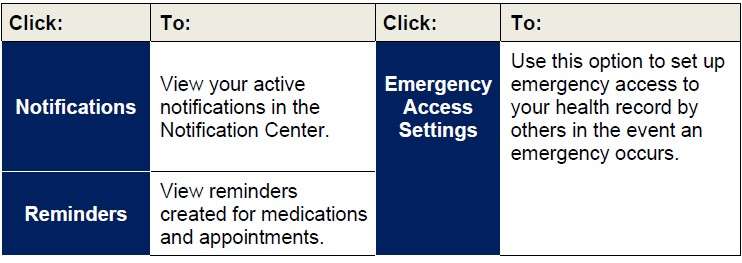
You have the ability to receive customized notifications when new messages, files, or data elements have been added to your health record. To set up your notifications, select the Communications Center > Notification Settings option. From the Notification Center, click the red add button to create a new notification.
Reminders
This page displays reminders that you have created from the Medications and Appointments pages. You can also manually add reminders to display here. You can filter the list to show All, Upcoming, or Past Appointments.
Adding Family Members
Additional family members (spouse, children, and/or parents) can be added to a registered MyCareCorner account once a healthcare provider (hospital or clinic) provides the family member with an email or a printed copy of the registration invitation for MyCareCorner. For step-by-step instructions on adding family members, see the Adding Family Members document or the portal application help.
Profile Options
To access the profile options, click the circle profile icon (top right).
Notifications
Manage My Account
From the Manage My Account page, you can update your contact information, add two factor authentication, change your password, and connect your account to your Apple or Google sign ins.
All Profiles
The All Records page displays all health records that are associated with your account. From here, you can access the record or delete the record from your account.
Share Record
From this page, you can share your record with a person you trust and view who you are currently sharing your record with. For more information on sharing your record, see Sharing Your Record in MyCareCorner.
My Profile
This page displays your current demographic information, including phone numbers and email addresses. Edit or add information using the available buttons.
Manage Health Devices
This page allows you to connect third party devices to import health data. Click the button to log in to the device site.
Emergency Access
Set up emergency access to your record by another person in the event of an emergency. Click Set Up Emergency Access. Follow the prompts to select the type of information to be accessed and notification email address.
Terms and Conditions
View the MyCareCorner ™ End User License Agreement and Terms and Conditions.
Privacy Policy
View the MyCareCorner ™ End User Privacy Policy.
Need More Help?
When using the patient portal, you can click the Get Help? button located in the upper right corner of the screen to access online application help.